The guide
It starts with the basics, and then goes through everything Fallboard can do, in short chapters. If you'd rather listen than read, press the button, and the guide is read to you.
The basics
Show meFallboard shows the notes of a song falling down the screen. Each note lands on the key you should press. Here's the shortest way to your first song.
- Plug your keyboard into the computer with a USB cable, and switch the keyboard on.
- Open Fallboard in Chrome, Edge or Firefox. If the browser asks whether it may use MIDI devices, choose Allow.
- The first time, a short helper asks three things. Answer them, and you're ready.
- Choose a song at the top left. The First songs are the easiest.
- Press Listen to hear the song. Then press Play, and press each key just as its note touches the line. The song waits for you.
- Too fast? Pull the speed slider to the left. To learn one hand at a time, choose Right hand only.
No piano keyboard yet? You can still play. The first screen offers Try it without a keyboard.
Everything else is in the Menu, at the top right. You don't need to know it all today. Come back to this guide whenever you want to know what something does.
Some chapters have a button called Show me. Press it, and Fallboard shows you, on its own screen.
The chapters
- Setting up
- Without a piano keyboard
- The bar at the top
- The Menu
- The Journey
- Playing a song
- Practising in small steps
- What you see on the screen
- The line where notes are due
- Which finger goes where
- From first song to playing alone
- Learn it by heart
- Play it alone
- Learning the names of the notes
- Sheet music
- The reading road
- Stars, ranks and timing
- Points and high scores
- Playing it clean
- Levels, medals and your week
- Your repertoire and certificates
- My collection
- Replay, recording and clips
- Sharing a run
- Concert pieces
- Sound and pedal
- Your own songs
- Colours and effects
- Shortcuts
- If something is not right
Setting up
Show meFallboard is at its best with a TV right behind your keyboard. Then the notes land on your real keys.
Connect the keyboard to the computer with a USB cable, and the computer to the TV with an HDMI cable. The helper's third question is where the notes should land. Choose On my real keys, with a TV.
Stand the TV so that the bottom of its picture meets the keys. Then press the full screen button in the bar, the one with four corners. Full screen also hides the taskbar of your computer, which would otherwise stand between the picture and your keys.
Now the picture is lined up with your keys. The helper does this with you, and you can do it again at any time. Open the Menu, press Settings, then Keyboard adjustment, and press Line up the picture. Two red lines appear. Move Left edge and Right edge until the lines sit on the outer edges of your lowest and your highest key. Then press a few keys. The picture should light up straight above each key you press.
A TV shows its picture a moment late. Switch the TV to Game mode, which shortens the delay. Then press Measure it, in the same panel. Fallboard allows for what's left when it judges your timing.
A new keyboard, or a new place for the TV? In Settings, under Keyboard adjustment, Start over takes you through the first-day steps once more.
Without a piano keyboard
You can try Fallboard before you own a piano keyboard. On a computer, the first screen offers Try it without a keyboard. The keys in the picture then show letters. Press a letter on the computer's keyboard, and that key plays. You can also press the keys in the picture with the mouse.
On a tablet, you play the keys in the picture with your fingers.
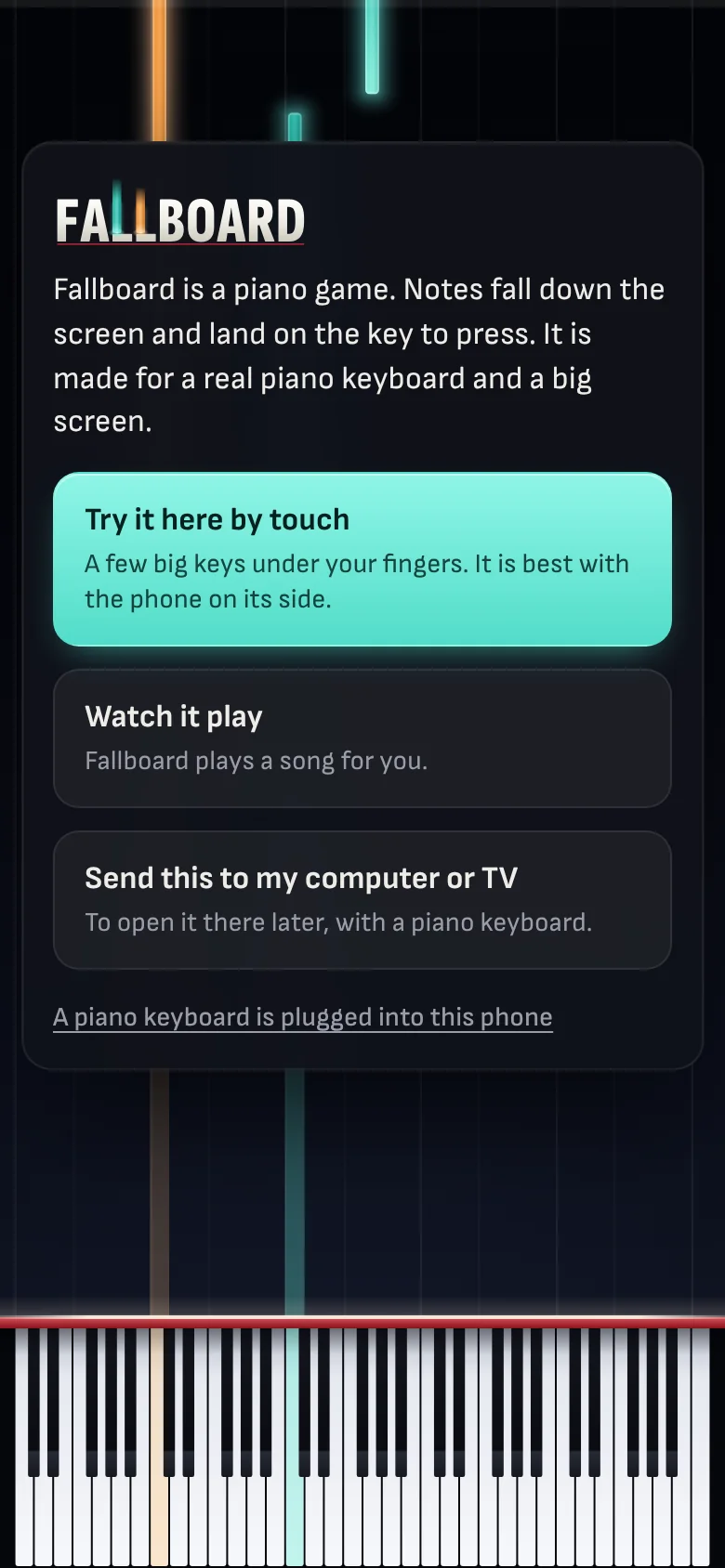
On a phone, the first screen has three choices. Try it here by touch gives you a few big keys. Turn the phone on its side, and they grow bigger. You play the right hand, and Fallboard plays the left. Watch it play lets Fallboard play a song for you. And Send this to my computer or TV hands you the address, to open there later.
Letters and touch are easier than real piano keys. So the score counts for 60 per cent, and three stars are the most a song gives. In the lists, such a run is marked computer keys, or keys of the screen.
Plug a piano keyboard in later, and Fallboard offers to set itself up for it.
The bar at the top
Show meThe bar holds what you need while you play. Here it is, from left to right.
The song list holds every song, in groups, the easiest first. A song that can give more than three stars shows that number beside its name. The more stars, the harder the song.
Play starts the song for you to play. Listen lets Fallboard play it, so that you hear how it goes. The round arrow starts the song again.
The first slider shows where you are in the song. Drag it to jump. Next to it you choose the hands. Both hands is the usual choice. Right hand only and Left hand only let you learn one hand at a time.
The second slider is the speed. Slower is easier. When the speed isn't 100 per cent, a small Reset button appears under the slider.
The small light is green when your keyboard is connected. The button beside it shows who is playing: press it to choose a name. And the ring with a number is your level.
Menu opens everything else. The four corners are full screen. The arrow at the far right hides the bar, so that the whole screen is for the notes. A button called Controls brings it back.
On a phone the bar is shorter. A button with three dots unfolds the rest.
The Menu
Show meEverything that isn't in the bar is in the Menu. Press Menu, at the top right.
The Menu opens with six big buttons: The Journey, Choose a song, Help while I play, My progress, Leaderboards and Settings. Press one, and its page opens. A change works at once. Back to the Menu leads back to the six buttons, and Back to the song closes the Menu.
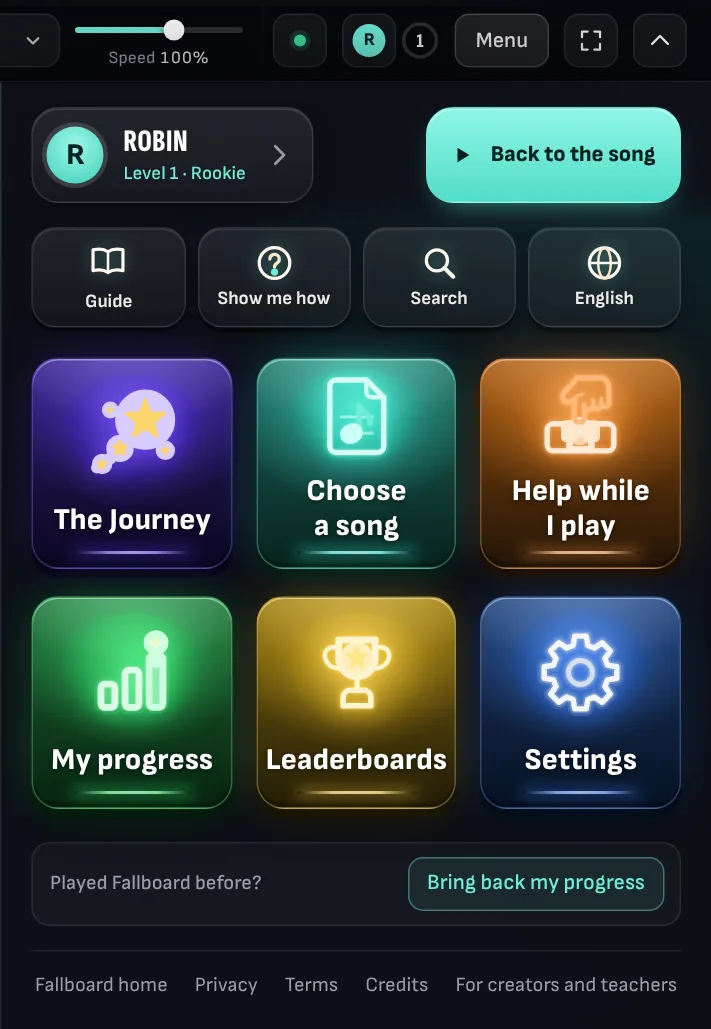
Looking for something? Press Search, at the top of the Menu, and type a word. It finds settings, songs, and chapters of this guide. Choose a result, and Fallboard takes you there.
Two buttons at the top are worth knowing. Guide opens this guide. Show me how holds short demos: a pointer works the real controls, and you're told what's happening. A demo changes nothing. Afterwards, everything is as you left it. Fallboard speaks 8 languages. Choose yours under Language, at the top of the Menu.
Settings has five tabs. Colours and effects is how Fallboard looks, and Sound is what you hear. Keyboard adjustment is where the picture meets your piano: how many keys it has, where you play, and where the notes land. Timing holds the delays of a TV, and how far ahead you see the notes. Save and share keeps your progress safe.
Who is playing? Press the player card, at the top of the Menu. There you choose a player, or add someone new.
The Journey
Fallboard has two doors. Free play is the game as you know it: any song, any help, any speed, with scores and stars. The Journey takes you, step by step, from the falling notes to playing on your own. Either door is open on any day, and what you play counts in both.
The Journey begins with a question: which piece would you most like to play? Then it lays out the road to it, in chapters of a few pieces. Each chapter brings one new skill, such as both hands, reading or rhythm, and ends with a small concert: its last piece, played alone with the screen dark.
Its picture is a night sky. Every note that falls is a star, and each piece you work on puts its notes back in the sky. Over the months, the sky fills with everything you've learned.
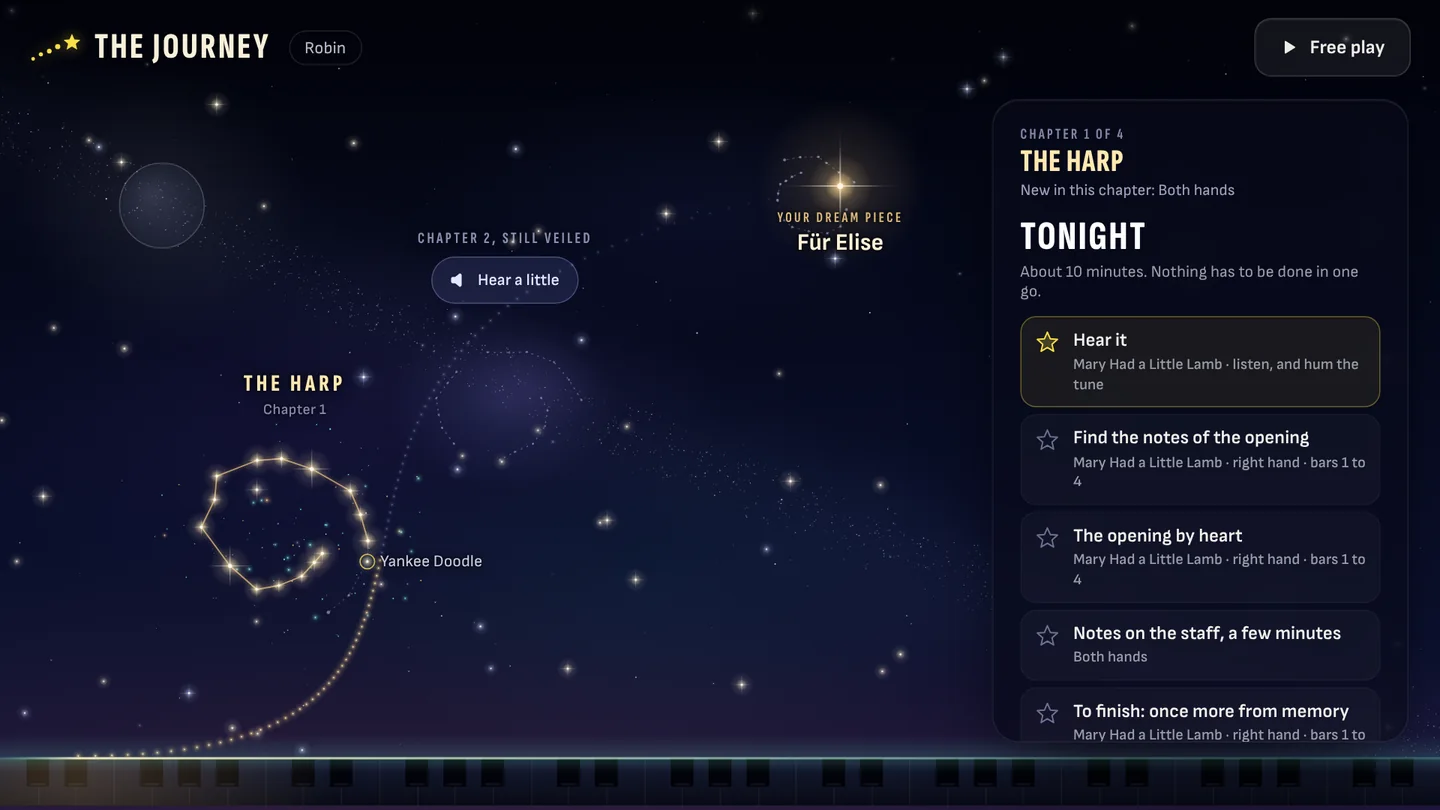
Each day there's tonight's practice, a quarter of an hour or less: yesterday's phrases by heart first, then the next step, and a short tune to read. Nothing is forced, and you can stop whenever you like. On the Journey, the help fades as you play well, and comes back when you struggle.
Playing a song
Notes fall down the screen. When the bottom of a note reaches the line, press its key. Hold the key for as long as the note is. A long note is a long hold.
At first, the song waits for you. It stops at every note until you press the right key, so you can't fall behind. If you press a wrong key, the song simply waits for the right one.
When you press a key in good time, a word pops up at the keys: Perfect, Great or Good. A key that came early or late gets no word at all. That's the usual setting, called Praise only. To be told about early and late keys too, open Help while I play, and under Words about my timing choose Praise and corrections. Or choose None, for no words at all.
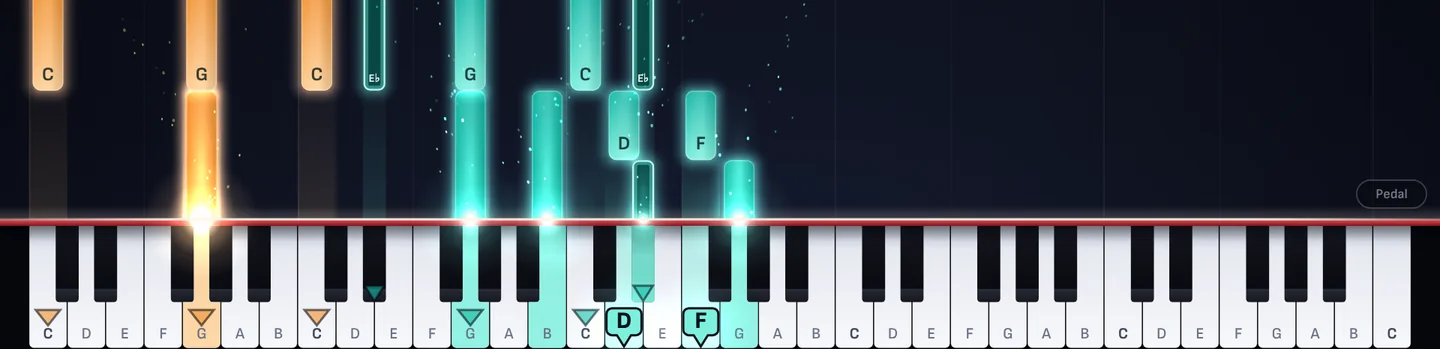
When a song comes easily, let it keep going. In Help while I play, set The song to Keeps going. Now it doesn't wait, just as a band wouldn't.
To play again, press the Space bar. Or press the lowest and the highest key of your keyboard together. That starts the song again without a hand leaving the piano.
Practising in small steps
Show meA new song is easier in small steps. Here are five that help.
One hand at a time. Choose Right hand only in the bar. Fallboard plays the left hand for you, in time with your playing. Then learn the left hand in the same way, and put the two together.
Slow it down. Pull the speed slider to the left. Half speed is fine. Bring it up again, a little at a time.
One part at a time. A longer song can be practised in parts. In the Menu, press Choose a song, and pick a part under Practise one part. Each part is about twenty seconds long.
Let the song help when you're stuck. It waits, and lights the key to press. In Help while I play, When I am stuck says when the key is shown: at once, after three seconds, or never.
And mend the hard spot. After a song with a few slips, the card offers a button such as Fix bar 4. Press it, and you play just that bar: slowly first, then a little faster, then at the speed of your run. Each step is done when the bar comes out clean. After the third, the bar is fixed.
What you see on the screen
Fallboard marks the way to every key. Here's what the marks mean.
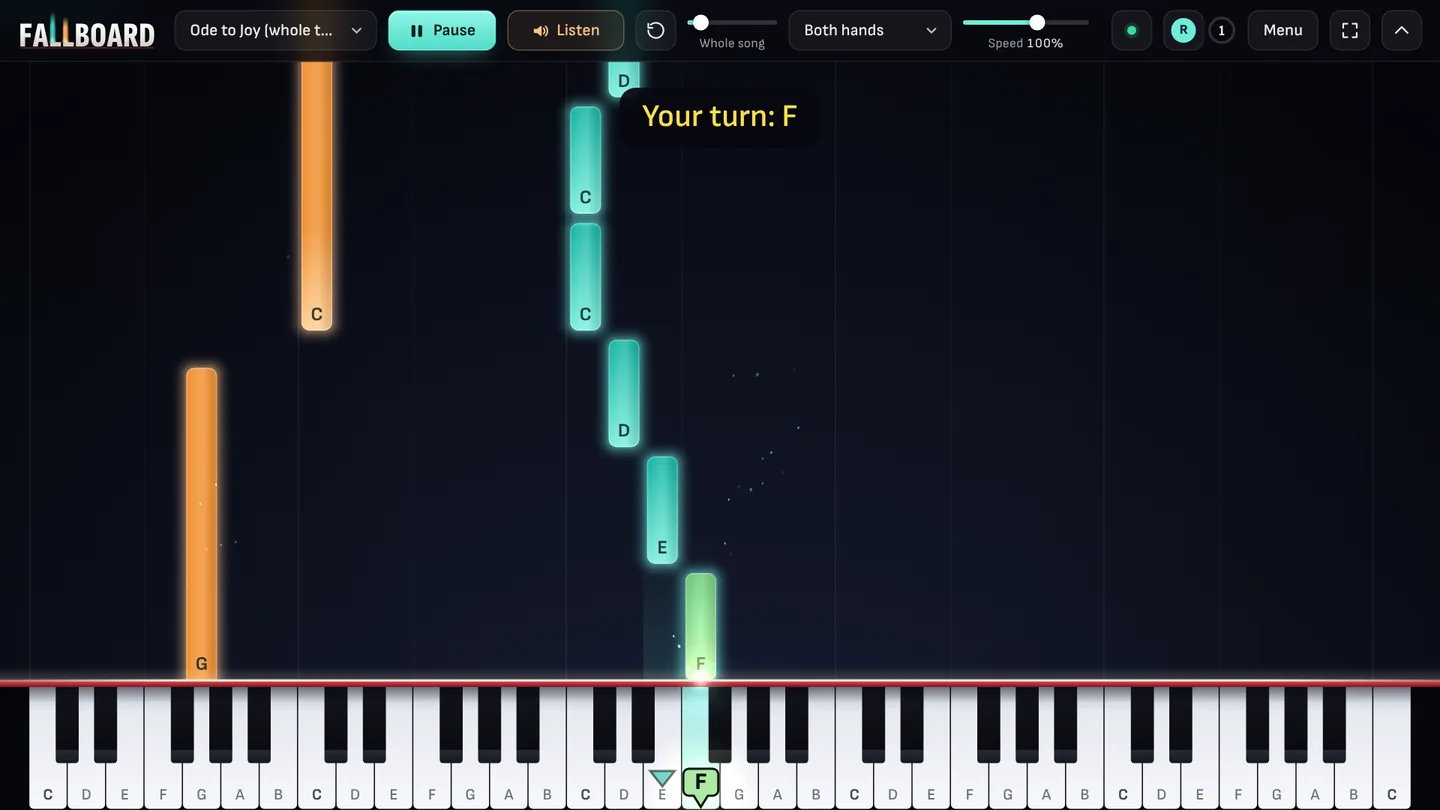
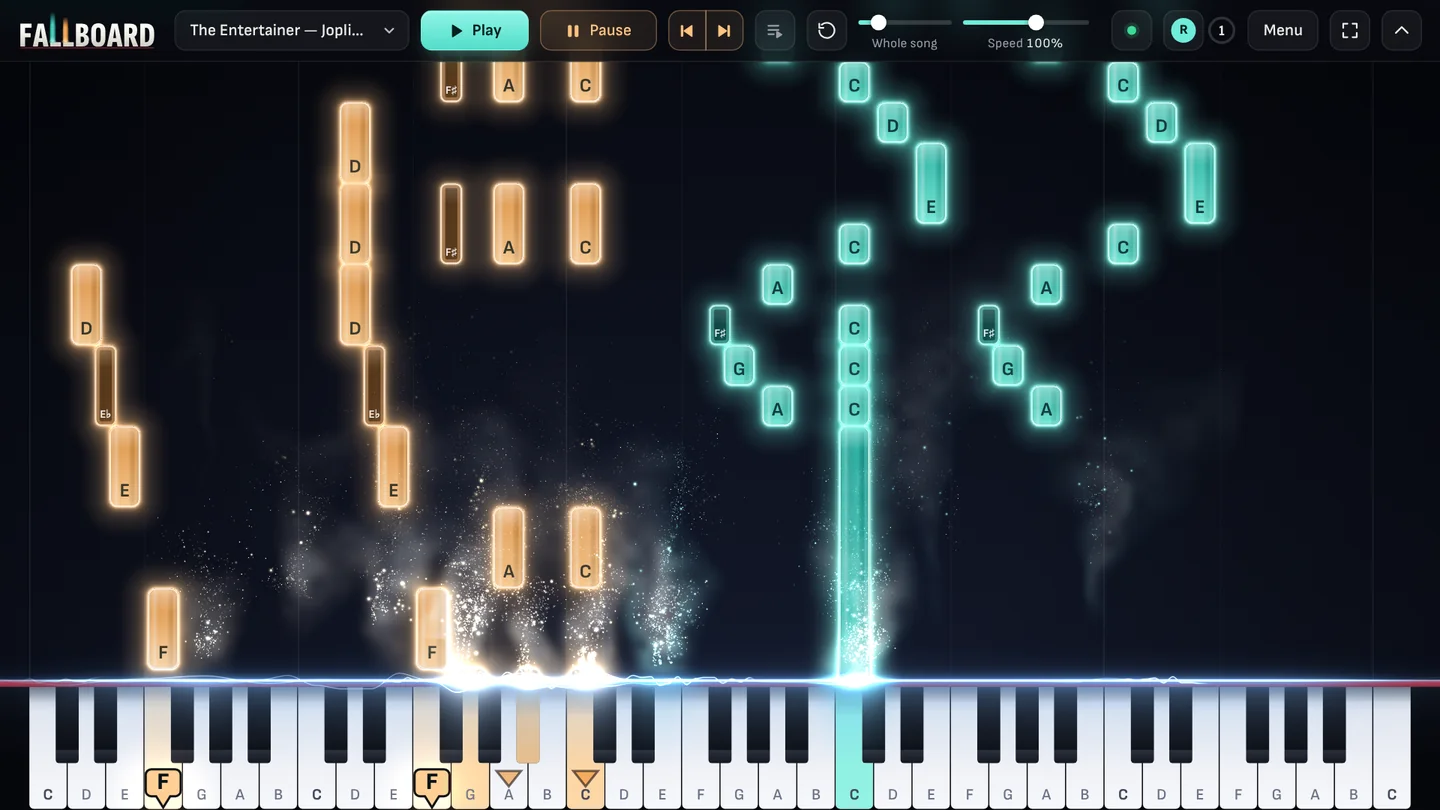
Colour tells the hands apart. Notes for the right hand are teal. Notes for the left hand are amber.
Every falling note carries its name, and so do the keys in the picture.
The key to press now is lit, and a small flag with its name stands on it. While the song waits for you, the flag flashes gold. A small arrow marks the key that comes after it.
Light beams run from each coming note down to its key, so that you see early where your finger must go.
All of this is in the Menu, under Help while I play, and each mark can be switched off when you no longer need it. How much help, at the top, sets them all in one go: Full, Medium, Light, or From memory.
The line where notes are due
The bright line across the screen is the moment of truth. A note is due when its lower end touches the line.
You choose where the line is. With a TV behind real keys, the best place is the bottom edge of the screen, so that the notes land on your real keys. Without a TV, the usual place is the top of the keys in the picture.
While no song is running, a small grip shows at the left end of the line. Take the line by its grip, and drag it up or down, to any height you like.
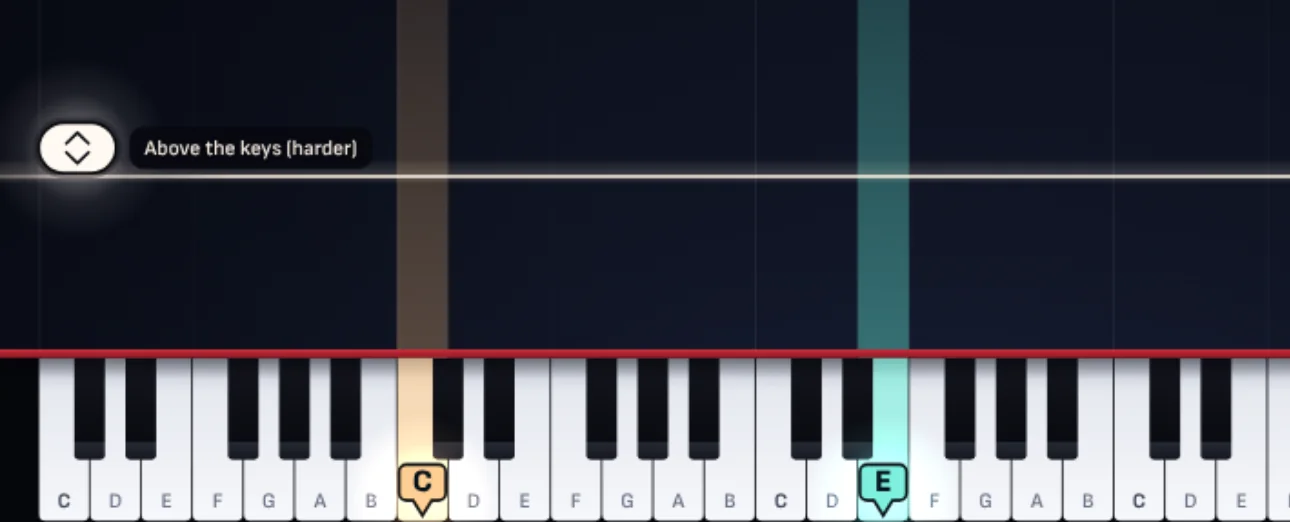
Higher is harder, on purpose. The notes then stop above the keys, and you find each key yourself. That trains your memory of where the keys are.
In the Menu, the place of the line is in Settings, under Keyboard adjustment, Line position: the usual places as a list, and a slider for a place of your own. How the line looks is chosen under Colours and effects, Line look.
Which finger goes where
Fingers are numbered from one to five in both hands. One is the thumb. Five is the little finger.
When you wait on a note for two seconds, a see-through hand appears over the keys. It shows which finger presses which key, with the number on each fingertip. The hand is drawn like the reflection of your own hand in a mirror behind the keys, so left and right are as you see them.
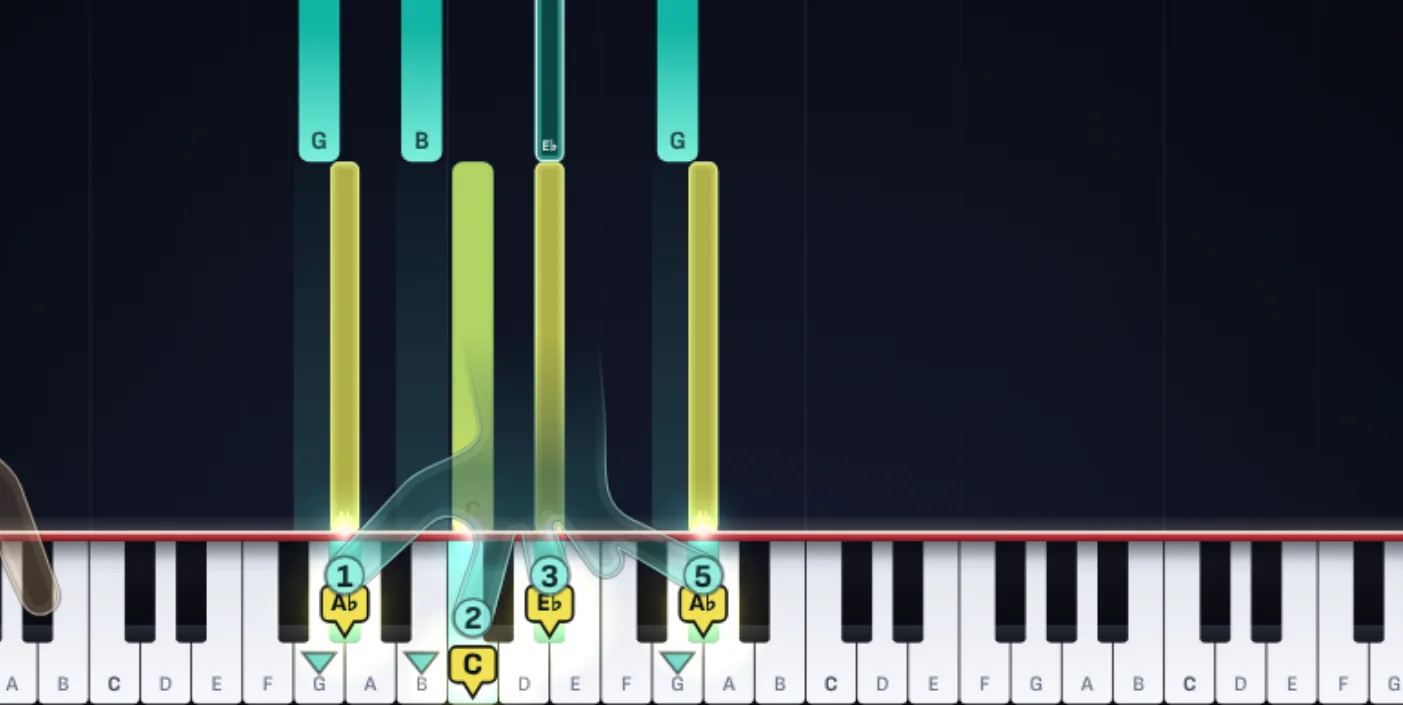
In Help while I play, Finger help has four settings. Off. A hand when I wait. A hand at every chord. And numbers on every note.
Fallboard works the fingers out by itself, the way a teacher marks a beginner's book. Take them as good advice. If another finger feels better to you or your teacher, use it.
From first song to playing alone
Every piece is learned in six steps. Start with all the help, then take it away, a little at a time. Each step makes you remember a little more.
- Hear it. Press Listen, and hear the song once. Hum the tune back: a tune you can hear in your head is easier to remember.
- Find the notes. The song waits for you, with all the help. One hand at a time is fine at first, but join the hands early.
- Steady and clean. Set The song to Keeps going, at a speed you can play without a wrong key. Fallboard offers a step faster when you're ready, up to full speed.
- Less help. The names, the light beams and the marks on the keys go, one by one. The falling notes stay. How much help, in Help while I play, does it in one go.
- By heart, a phrase at a time. The notes are hidden, and you play each phrase from memory.
- Alone. The screen goes dark, and the song follows you.
The Journey walks these steps with you, and the song list shows the step each piece has reached. In free play, take any step at any time. The piece is yours when you play it with both hands, clean and alone, on your first try of a day.
Learn it by heart
A piece is cut into phrases of two to four bars, and each phrase is learned on its own. Its notes are hidden, and you play it from memory.
When you don't know the next key, it appears after a short wait. Each time you get it right, the wait grows a little. Once you play every key before its hint comes, you know the phrase.
Then the phrases are joined: the first, then the second, then the two together, and so on. Once you know a few, they're asked out of order. It feels harder, and it works better a day later.
Each day begins with yesterday's phrases, before anything new. Trying to remember, even when you get it wrong, is how a piece moves from the screen into your hands.
Play it alone
The last step of a piece is to play it alone. The screen shows nothing but the line, or goes dark. No falling note, no light on a key, no name. You play from memory.
The song follows you instead of its own clock. When you wait, it waits. When you skip a note and go on, it goes on with you. Until you play both hands, Fallboard plays the other hand, in your tempo. If you like, it ticks softly on every beat.
At the end, a card tells you how it went: how many notes came in their order, the keys that went astray, and how even your beat was. Played clean on a first try, the piece is yours.
Learning the names of the notes
Put name stickers on your keys, and keep the names on the falling notes switched on. When a note with the letter A falls, look for the A on your keys. After a while, you'll know where A is without looking.
In Help while I play, under Note names, you choose how the names are written, and which keys of the picture carry their names: every white key, only the C keys, or none.
If your stickers have colours, open Settings, then Colours and effects, and set Notes are coloured to By note name. Then every C has one colour, every D another, and you can change each of the seven colours to match your stickers. The left hand's notes then carry a white ring.
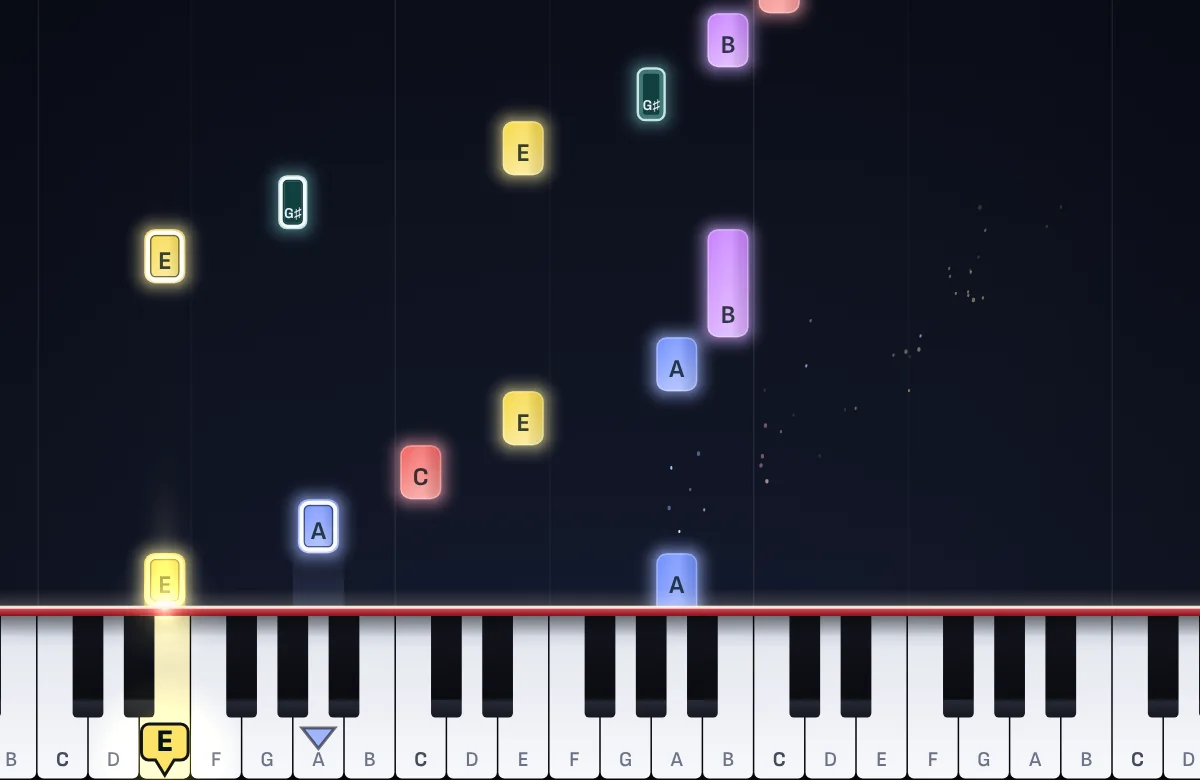
When the names come easily, switch the names on the keys off first, then the names on the notes. After that, try the sheet music.
Sheet music
Fallboard can show real sheet music above the falling notes. Choose it in Help while I play, under Sheet music. There are two kinds. With Sliding along, the written notes slide past a red line, and each one crosses the line when it's due. A page looks like a printed sheet, with a marker that moves along it.
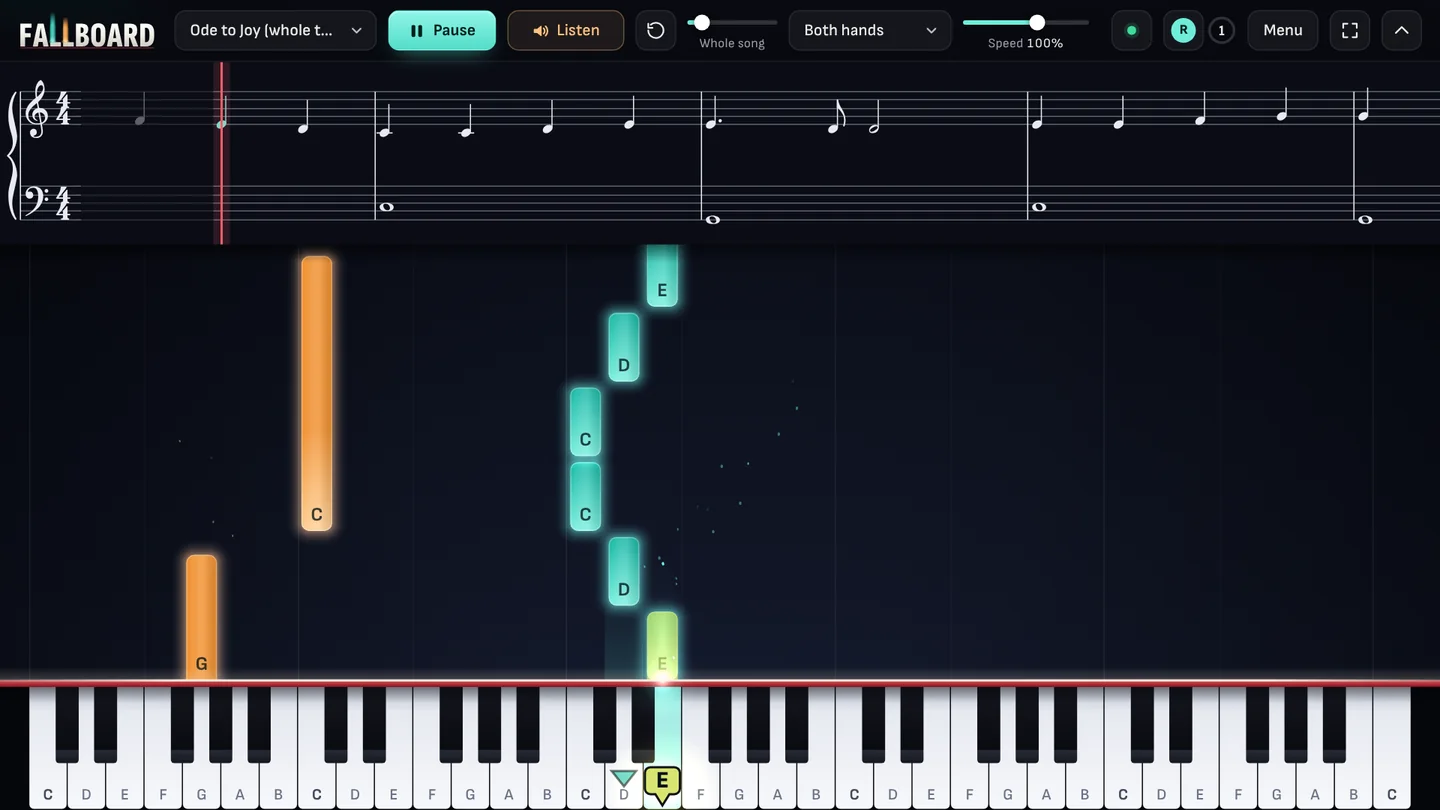
The paper is dark with light notes, which is easy on the eyes in front of a big screen. If you prefer, change it to light paper with dark notes.
To read from the sheet alone, set The falling notes to Hidden, in Help while I play. That's how reading music is learned: first the falling notes and the sheet together, then the sheet alone.
Some pieces have no sheet music in Fallboard, most concert pieces among them. Fallboard tells you so, and the falling notes show every note as usual.
The reading road
Reading music is a skill of its own, learned a few minutes a day, beside the pieces you learn by heart. The Journey walks the reading road with you, one small step at a time.
First come the notes on the staff, the five lines that music is written on. Then steps and skips: how far, and which way, the next note goes. Then rhythm: you tap a bar on any key while Fallboard ticks the beat. And play it back: Fallboard plays a few notes, and you play them after it.
Every day there's a new tune to read: four to eight bars that you've never seen, written for Fallboard. You read it from the sheet alone, slowly, and the song goes on through your mistakes. That's what sight-reading is.
Stars, ranks and timing
After a song, a card shows how it went: your stars, your rank, your points, and how well you kept time.
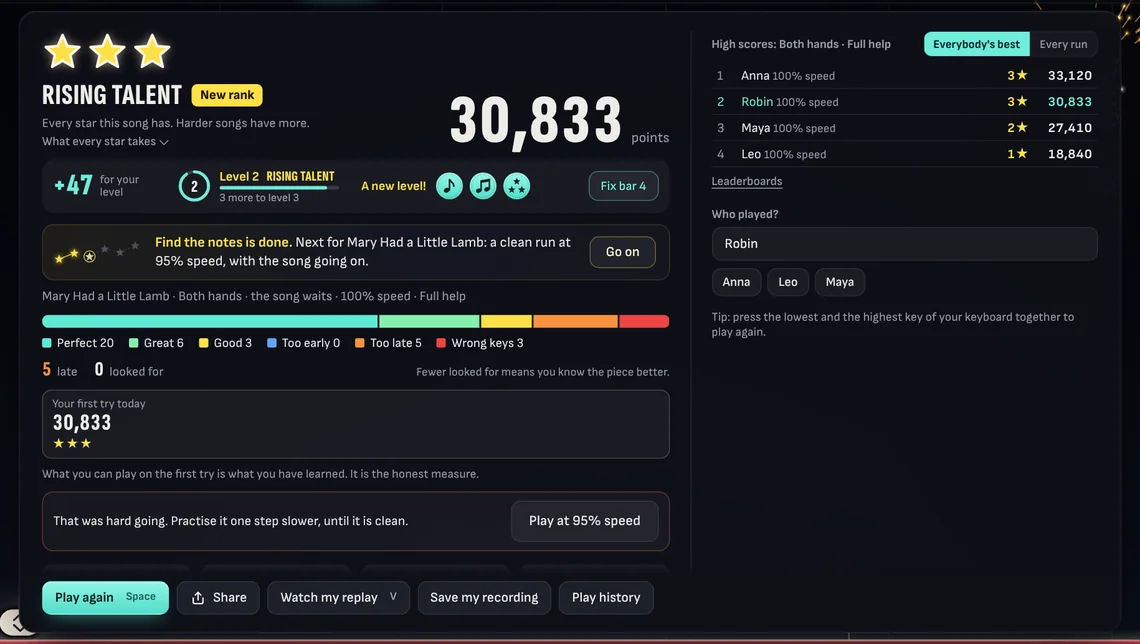
Every right key falls into one of five classes. Perfect is within five hundredths of a second of its beat. Great is within about a tenth of a second. Good is within about two tenths. Beyond that, a key was too early or too late. Too early means rushing. Too late means the key was still being looked for.
An easy song can give three stars. Harder songs give more: up to six in Getting harder, up to eight among the Big pieces, and up to twelve for the hardest Concert pieces.
The first stars come easily. One for playing the song to its end. Two for mostly right keys. Three for nearly all the keys right, with most of them on time. From there, every star asks for more: a real piano keyboard, fewer wrong keys, tighter timing, full speed, both hands, and no pause. From star eight on, the song must keep going instead of waiting for you.
Under the stars, the card says what the next star takes, with your own number beside it. For example: for star three, 95 per cent right keys. You had 91 per cent.
Every run also earns a rank. There are twelve, one for each star, from Rookie and Busker up to Master and Legend.
Press More about this run for the details. A chart shows how early or late every key was. And where most slips fell in one part, a button lets you practise just that part.
Points and high scores
Every right key earns points, and the closer to its moment, the more. A wrong key costs a lot: playing it right matters more than playing it fast.
The total is then scaled. Less help and a song that keeps going raise the score, and so does speed, though much less. Every phrase you play without a wrong key adds a tenth to its points.
Leaderboards, in the Menu, shows the board of each song, with a board for each hand and each level of help. The name on a score is the player who is chosen in the bar. You can also type a name on the card, under Who played.
A board shows everybody's best run, one row for each player. So nobody is pushed off the board by somebody who plays more often. Every run of this song, under the board, shows all the runs that are kept.
Every play is also written down in the order it was played. Open My progress, and press Every play. You see the last 300 plays: when, who, which song, how many stars and how many points.
Scores can be removed, but the way there is tucked away on purpose: Leaderboards, then Removing scores. A parent who is too far ahead can remove their own scores, and let the children win.
Scores and names are kept in your browser, on your own computer. A run leaves it only when you share that run. To keep everything safe, or to take it to another computer, open Settings, then Save and share, and press Save everything to a file. Load it back brings it in again.
Playing it clean
Fallboard rewards playing it right more than playing it fast. A run with no wrong key and no missed note, with nearly every note on time, is a clean run. Clean runs count most, for your score and for your level.
Each piece remembers your clean speed: the fastest speed at which you've played it clean. After three clean runs in a row, Fallboard offers a step faster. After a messy run, it suggests a step back down.
The first time you play a piece on a day is your first try. The card shows it beside your best run. It's the honest measure of what you've learned: what you can play cold, as you would play it for someone.
Where the song waits, a key that comes a little after its note is late. One that comes more than a second after was looked for. The card counts the two apart. Fewer looked for means you know the piece better.
Levels, medals and your week
Show meFallboard remembers what you've earned by playing. The ring with a number in the bar is your level. Press it, and My progress opens.
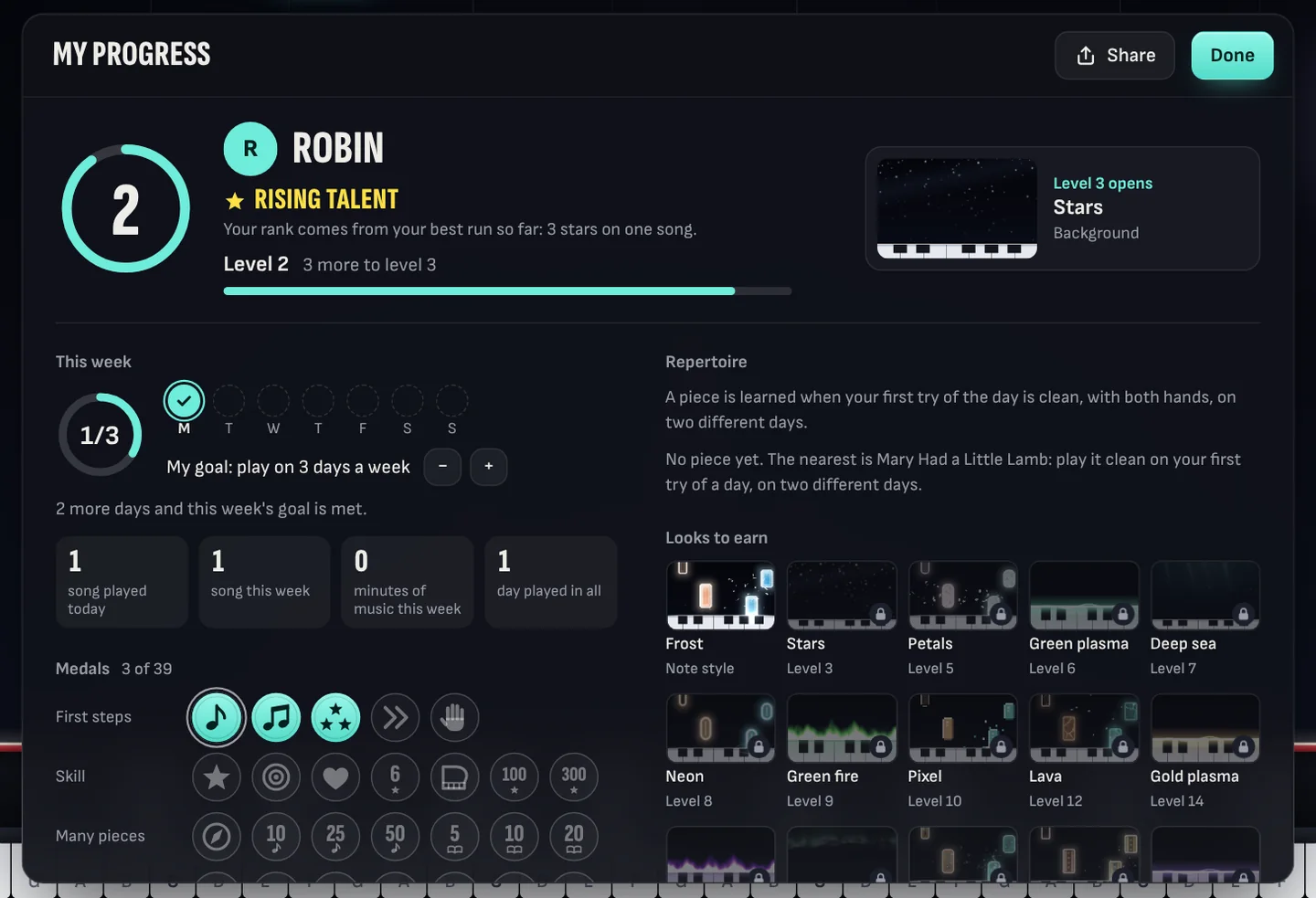
Your level grows when you play well: a clean run, a new clean speed, a better first try of the day, a phrase learned by heart, a piece played alone. The days you play count too. After a run, the card says what it brought for your level. And nothing is ever taken away.
New levels open new looks: styles for the notes, backgrounds, colours for the line, and small pictures to wear beside your name. My progress shows what the next level opens.
There are medals to earn: for your first song, for three stars, for playing with each hand, for coming back day after day. Press a medal, and it tells you how it's earned.
This week shows the days you've played. You set your own goal: on how many days a week you mean to play. Three is the usual. When you meet it, that counts for your level too.
Each player has a level, medals and a goal of their own. So choose your name in the bar before you play.
Your repertoire and certificates
Your repertoire is the list of pieces you can really play. A piece is learned when your first try of the day is clean on two different days. Pieces you learned before are still learned.
Open My progress, and look under Repertoire. It lists every piece you've learned. A learned piece stays fresh for three weeks after you last played it well. Then the list suggests playing it again, to keep it fresh.
Every learned piece has a certificate, with your name, the piece and its stars. Every fifth level has one too, beginning with level five. You can print a certificate, or save it as a picture.
My collection
Good practice brings surprises: pictures to wear beside your name, frames, name styles, titles, note styles, effects for the line and the keys, backgrounds, card designs and fireworks. They're kept in My collection, in My progress.
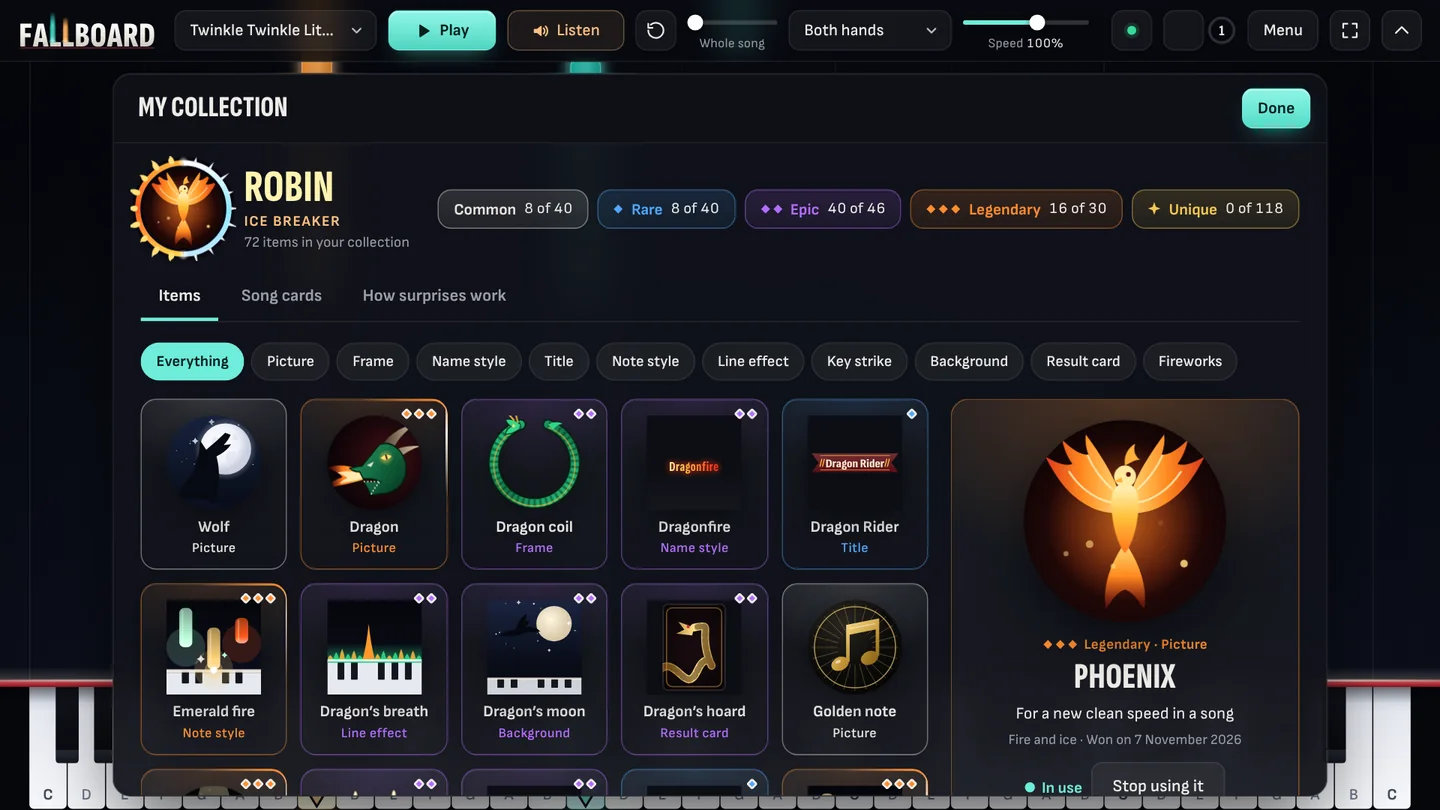
A clean run, a new clean speed or a phrase by heart can bring one, a few a day at most. Good practice raises the chance of a surprise, and luck chooses what it is. No surprise can be bought.
Surprises come in tiers, told by colour and by small marks: Common, Rare, Epic and Legendary. And every song has one of its own, a picture drawn from its melody, won only by playing the whole song with both hands and not one wrong key.
Press an item to see it large, and to use it. In the grown-ups' area, chance can be switched off for a child. Then the same good moments bring the items in a fixed order.
Replay, recording and clips
Every run is recorded. After a song, press Watch my replay. The song as written is shown in grey, and your own notes lie on top in colour. You see where you were early, where you were late, and which keys were wrong.
If your keyboard senses how hard a key is struck, the replay shows that too. A key that you struck softly is drawn paler.
Save my recording keeps your playing as a MIDI file on your computer. You can load it back later, as one of your own songs.
You can also make a short video of a run. Press Share on the card, then Make a clip. Fallboard plays your run again and films it, with its lights and its sound. The clip is made in your browser and saved on your own device. Nothing is uploaded. If the button isn't there, your browser can't record clips. Chrome and Edge can.
Do you make videos of your playing? In Settings, under Save and share, Recording has a clean screen, and a way to film your next run as you play it. What you may do with your videos is on the page For creators and teachers.
Sharing a run
Show meA run you're proud of can be shared. After a song, press Share on the card.
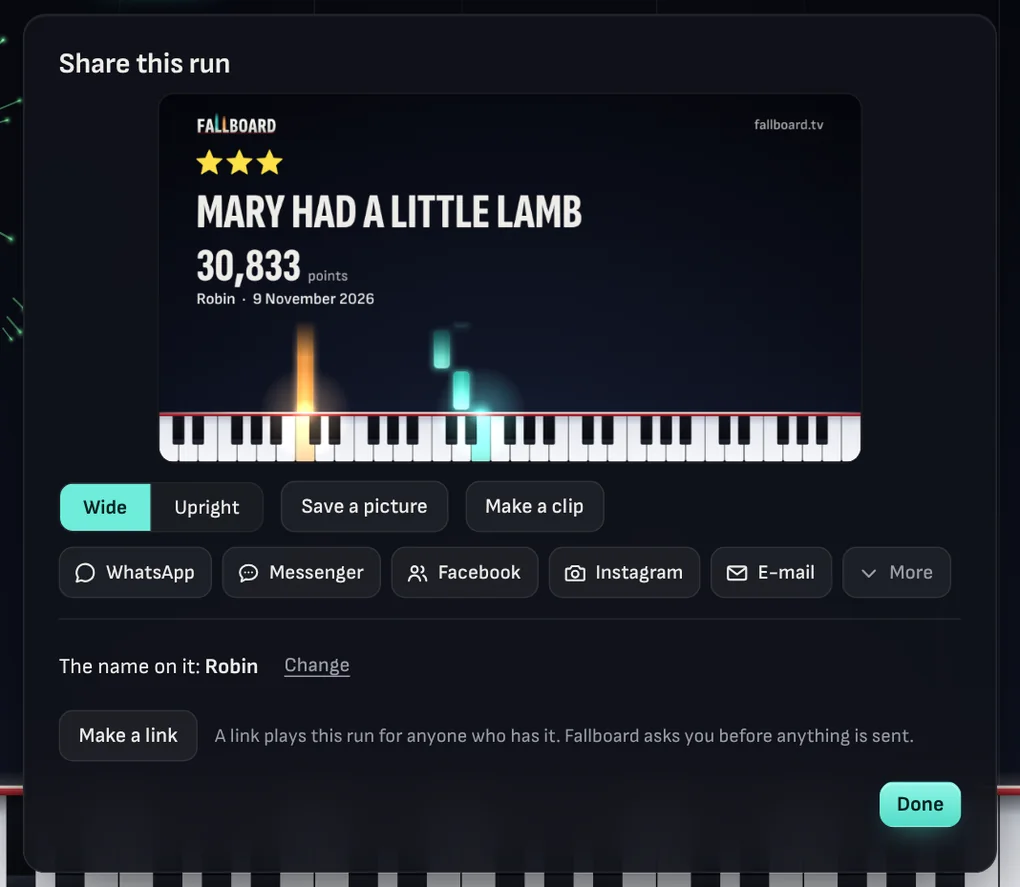
The simplest way is a picture of your result. Choose Wide or Upright, and press Save a picture. A picture, like a clip, is made in your browser and stays on your own device. Fallboard uploads neither. They're yours to send to anyone you like.
The other way is a link. Make a link puts the run on Fallboard's server. Anyone who has the link can watch the run, and see the piece, the stars, the score, and the name on it. The name is one word: a first name or a nickname. You can change it before you share.
Fallboard asks before anything is sent. The first time, it says: ask a grown-up. Under sixteen, a parent or guardian must agree for you. Until somebody agrees, nothing is sent.
A shared run stays for up to 365 days. You can remove it sooner. Remove this shared run is in the share panel, and in Settings, under Save and share, Sharing, where every run you've shared is listed.
A link can be made of a whole piece, played from its beginning to its end. A run of your own song file can't be sent, but a picture always works.
Whoever opens your link can press Beat this score, and play the same piece against your run. Two scores run side by side, and at the end the card says who's ahead.
Sharing is up to you. It earns nothing: no points, no medal, no level.
Concert pieces
The last group of the song list holds the concert pieces: famous works for the piano, complete and at their full difficulty. Among them are the last movement of Beethoven's Moonlight Sonata, Chopin's Revolutionary Étude, and Debussy's Clair de lune.
These pieces are long, so Fallboard fetches a piece when you choose it. That takes a moment, and it needs the internet connection.
A concert piece is for watching as much as for playing. Press Listen, hide the bar, and set Graphics quality to Ultra.
To learn one, take your time: one hand, one part of the piece, at half speed. The hardest of them can give twelve stars, and the last stars ask for a performance that a professional would be proud of.
Sound and pedal
The song can sound through your keyboard, or through the computer and the TV. Through the computer, you hear recordings of a real grand piano. Choose this in the Menu, under Settings, Sound.
When Fallboard plays a song for you, it plays with feeling. The tune sings above the left hand, and a phrase grows and dies away, as a pianist would shape it.
The sustain pedal is set to Automatic. Fallboard then holds the pedal where the music needs it. Set it to Manual if you want to use your own pedal. A small mark on the screen, called Pedal, turns yellow where the song wants it.
If your keyboard makes no sound of its own, tick Play my keys through the computer too.
And if you hear nothing at all, click anywhere on the page once. A browser lets sound begin only after that.
Your own songs
You can load any song that you have as a MIDI file. Open the Menu, press Choose a song, and choose the file under My own MIDI files. Fallboard keeps it in your browser, so it's still in the list next time, in the group My own files. The file never leaves your computer.
A MIDI file that a program made from a sound recording usually has many wrong notes. A MIDI file made from written music works much better.
Your own songs get stars as well. Fallboard works out from the notes how hard a song is, and gives it between three and twelve.
To take your songs off the list again, press Remove my own songs, in the same place.
Colours and effects
Show meYou can change how Fallboard looks. All of it is in the Menu, under Settings, Colours and effects.
Graphics quality has three levels. Simple shows plain notes. With Good, each note burns away where it lands. Ultra is the richest, and needs a computer with a good graphics card. If the computer can't keep up, Fallboard turns the effects down by itself, and tells you so.
The theme is the colour of the stage, the bar and the Menu: Midnight blue, Black, Plum or Forest.
The notes come in eight styles, from Glass and Frost to Pixel and Lava. The line can be clear, faint or hidden, a wire of plasma, a misty plasma, or a line of fire. And behind the notes stands a background of your choice: stars, northern lights, the deep sea, or a concert hall.
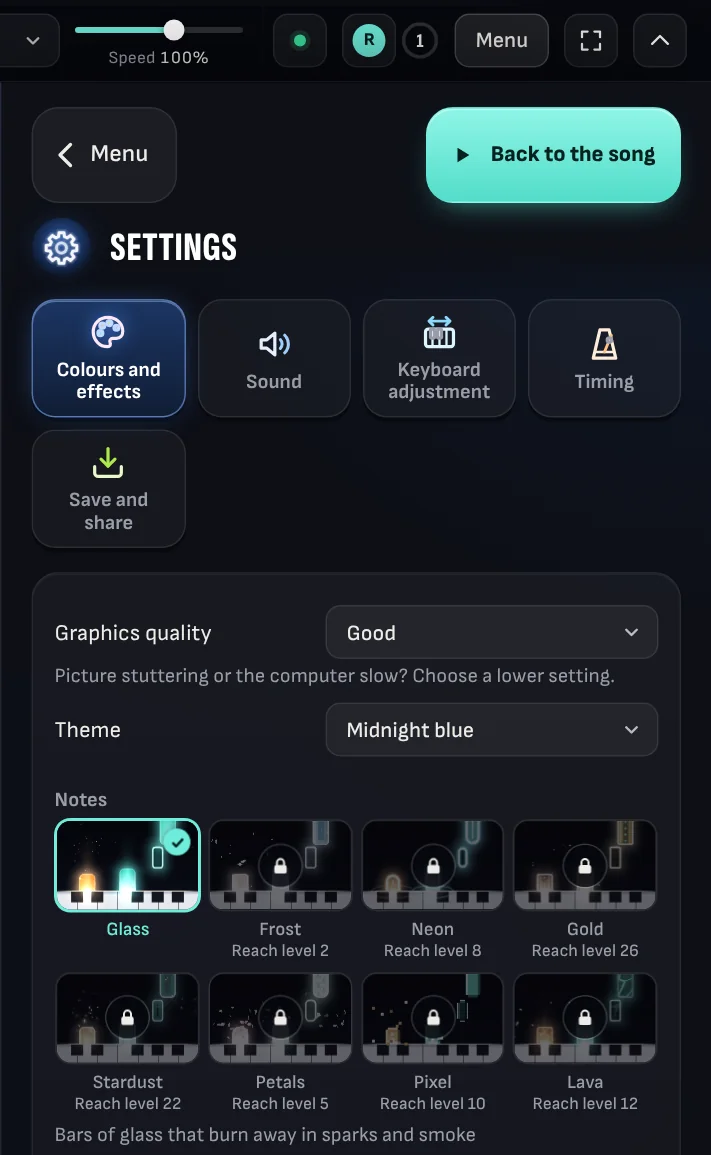
Some looks carry a small padlock. They're earned by playing, and each one says what opens it: a level, or a medal. When a look opens, a card tells you, with a button called Use it now. Later, you can choose it here. Looks won for your collection are here too. The picture beside your name is chosen in My progress: press it there.
Looks belong to the player. When another name is chosen in the bar, Fallboard puts on that player's looks. And a look changes nothing about the playing or the score.
Shortcuts
On the computer keyboard: Space plays or pauses. L is Listen. R starts again. The left and right arrow keys jump five seconds back or forward. V shows your replay after a song. N goes on to the next part, when you practise in parts. C hides or shows the bar. M opens the Menu. B is the sustain pedal while you hold it. And Escape closes whatever is open.
Escape also stops a demo, and closes this guide when it's open inside Fallboard.
On the piano: the lowest and the highest key together start the song again.
You'll find the same list in the Menu, under Show me how.
If something is not right
No keyboard is found. Check that the keyboard is switched on, and that its cable goes into the computer. If the browser asks whether it may use MIDI devices, choose Allow. And use Chrome, Edge or Firefox, on a computer.
There's no sound. Click anywhere on the page once. Then look in the Menu, under Settings, Sound.
Your keys seem late. Switch the TV to Game mode, and measure the picture delay, as the chapter Setting up describes.
The picture stutters. In Settings, under Colours and effects, set Graphics quality to Good, or to Simple.
Ultra, Plasma or Fire isn't available. They need a graphics card, and a browser that's allowed to use it. In Chrome and Edge, look in the browser's settings, under System, for the switch that lets it use graphics acceleration.
A concert piece doesn't load. It's fetched when you choose it. Check the internet connection, then choose the piece again.
The dark background looks bright blue or grey on your TV. Then the TV is brightening dark colours. Look in its picture settings for a mode called Game, PC or Cinema. The Black theme helps too.
Can't find a setting? Press Search, at the top of the Menu, and type a word.
Anything else: write to hello@fallboard.tv.
Last updated October 2026.